

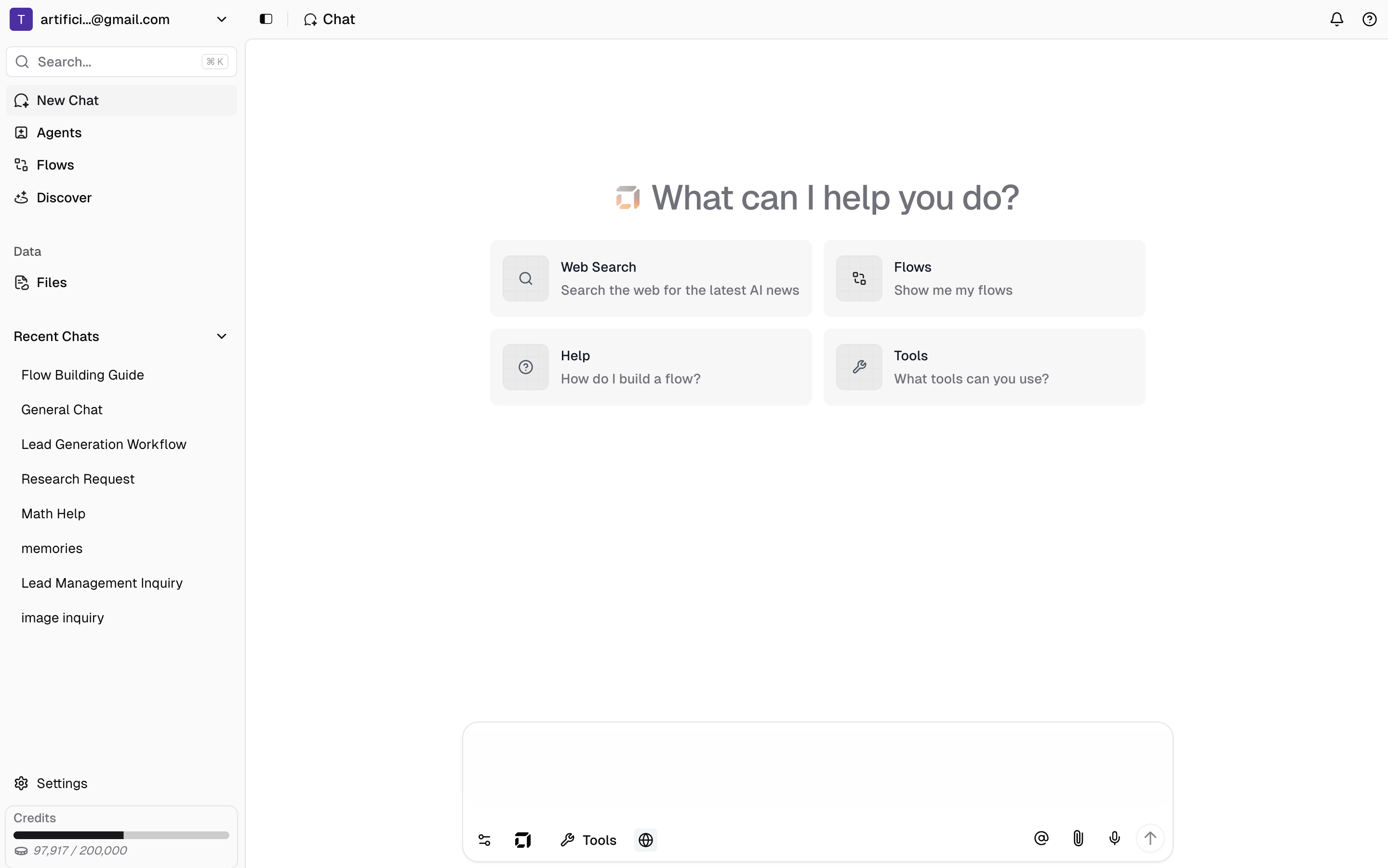
What is Chat?
Hyper’s chat interface allows you to communicate with AI agents using natural language to execute tasks across all your connected applications. Unlike traditional chatbots that simply answer questions, Hyper AI takes action—accessing your tools, planning multi-step workflows, and delivering complete results.Key Features
- Natural Language Processing: Communicate with your agent using everyday language
- Multi-App Execution: Perform tasks across multiple connected applications in a single conversation
- Real-time Responses: Get instant feedback and results from your requests
- Context Awareness: The agent remembers previous conversations and maintains context
- Tool Execution: Direct access to 250+ integrations and system tools
- Approval Controls: Human-in-the-loop for sensitive operations
Getting Started
Go to the Chat Page
Navigate to https://app.hyperfx.ai/chat to access the chat interface.
Before you start, we recommend connecting at least one app in Settings → Apps to unlock the full power of AI automation.
Chat Settings Configuration
Chat Mode Settings

In the chat input area, manage chat mode settings by clicking the settings icon on the bottom left:- Thinking: Allows the agent to think more deeply through each step, great for complex tasks
- Planning: Enables the agent to create detailed plans before execution, ideal for multi-step tasks
- Approval: Human-in-the-loop for sensitive tools - the agent waits for your approval before executing actions
AI Model Selection

Click the Hyper icon to choose between available AI models:- Hyper-Plus: Our default and most powerful model, optimized for tool execution and complex tasks
- Other Models: Various provider models available, though Hyper-Plus performs best with our tools
- Custom Agents: Enable one of your custom agents, which auto-applies agent settings and tool access
Tool Selection
Click the toolkit modal to choose which tools and app integrations your agent can access.
Advanced Features
Adding Memories
Click the @ button in the chat input to add memories to your agent. This provides additional context that you want your agent to remember across conversations.
File Uploads and Voice Dictation

- Paperclip Icon: Upload images, files, and other documents to share with your agent
- Dictation Icon: Use voice input to talk naturally with your agent - transcribes speech to text
Working with Tool Results
Expanding Tool Cards
In chat, you can expand each tool card to see the results associated with the tool. When using tools that involve artifacts, like flows, code interpreter and web browsing, you can click “View artifact” and the artifact will deploy on the right side of the chat screen.
Viewing Tool Outputs
For example, if you want to see an email draft that’s been created without going to your email, you can click on the tool card to expand it and view the tool output directly in the chat interface.
Use Cases & Examples
Lead Generation
- “Use Apollo to find SaaS startup founders in healthcare, add them to my Google Sheets CRM, and send personalized LinkedIn connection requests”
- “Find my HubSpot warm leads and create Google Calendar meetings with them”
Marketing & Ads
- “Research Frame Denim, scrape their product images, and launch a Meta campaign for their latest collection”
- “Analyze my Google Ads performance and create Meta ad campaigns for similar audiences”
- “Find trending topics on Web Search, create hero images for each topic, write LinkedIn posts about them, and schedule them for optimal engagement”
Data & Automation
- “Pull my HubSpot deals from this quarter, analyze the data with Code Interpreter, create a performance dashboard in Google Sheets, and email the report to my team via Gmail”
- “Export my PostgreSQL sales data to Google Sheets and create a performance dashboard”
- “Organize my Google Drive files by project and share summaries via Gmail”
Research & Analysis
- “Research our top 5 competitors using Web Browsing, extract their pricing and features, compile everything into a Google Sheets comparison, and create a competitive analysis presentation”
Tips for Better Results
- Be specific: Include details about what you want to accomplish and expected outcomes
- Provide context: Mention timeframes, specific files, people, or business objectives
- Use voice dictation: Talk naturally to provide richer context and instructions
- Enable appropriate modes: Use Thinking for complex analysis, Planning for multi-step tasks
- Select relevant tools: Only include the integrations you need for your specific task
Example: Meta Advertising Automation
Video Demo: Launch Meta Campaigns with Hyper AI
Watch how our AI agent creates a complete Meta campaign from scratch by scraping a website and building targeted ads:What You Can Do with Meta Integration
Campaign Creation- Scrape websites for product images and create ad creatives
- Set up targeted audiences and campaign structures
- Configure budgets and launch campaigns automatically
- Analyze campaign performance and ROI metrics
- Generate detailed reports on ad spend and conversions
- Compare performance across different ad sets and audiences
- Pause underperforming ads and scale successful ones
- Update budgets based on performance data
- A/B test creative variations and targeting options
- Generate ad copy variations for different audiences
- Create custom audiences from website traffic or customer lists
- Schedule and manage posting across Facebook and Instagram
Example Meta Requests
- “Create a Meta campaign for our new product line using images from our website”
- “Analyze last month’s Meta ad performance and show me the top performers”
- “Pause all ads with CPA above $50 and increase budget on best performers”
- “Generate 5 ad copy variations for our holiday sale campaign”